Aspect-oriented programming in .NET MVC

In the Aspect-oriented programming in .Net Core article, we have a short introduction to aspect-oriented programming(AOP). We consider the ASP.NET MVC web application with aspect-oriented programming and hope the ASP.NET MVC web application project architecture is the Onion architecture. In .NET Core cases, we use Microsoft.Extensions.Logging package to do the aspect-oriented programming concepts, but in the .NET MVC case, we can’t use this package because this package is based on the .NET Core environment.
Note: If you don’t know the ASP.NET MVC web application of the Onion architecture, please follow the “Building MVC pattern project by Visual Studio 2017 ( ASP.Net framework Part ) .”
In the .NET MVC case, we also follow the .NET Core case viewpoints means that the ASP.NET MVC web application projects focus on the action filter of the ASP.NET so that it will use the System.Web.Mvc namespace. The action filter of the ASP.NET MVC and the action filter of the ASP.NET Core has a few parts difference, such as in the tracer mechanism. The .NET Core cases use Microsoft.Extensions.Logging package, which includes the tracer concepts, share source code concepts, and the filtering mechanism. It can tracer log in another classic library project, but in the .NET MVC cases, the action filter can’t tracer log in another classic library project because it doesn’t have the share source code concepts. If .NET MVC cases want to have the tracer mechanism, the .NET MVC case must extra-write the tracer log source code in the web project.
Aspect-oriented programming tutorial in .NET MVC
Step 1. Create Logging folder under the ASP.NET MVC web application project.

Step 2. Create the classic file under the Logging folder. The classic file name sets “LogAttribute.”
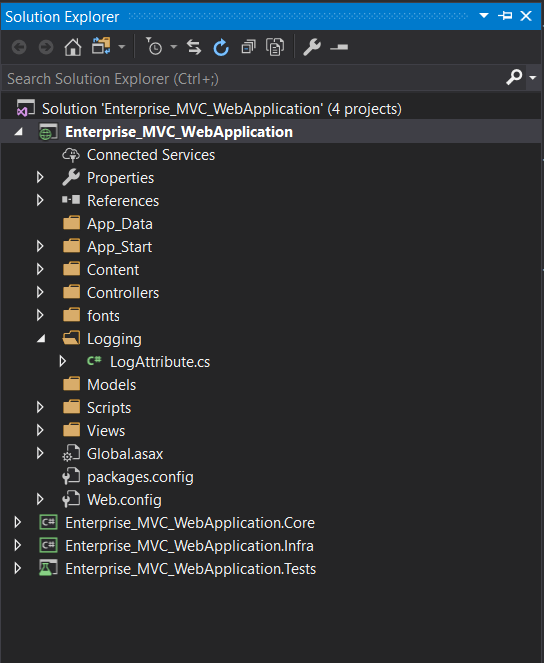
Step 3. The LogAttribute class must inherit the “ActionFilterAttribute” and the “IActionFilter.” It will have four override methods, which must be written by developers in the LogAttribute class file, such as OnActionExecuted, OnActionExecuting, OnResultExecuted, and OnResultExecuting.
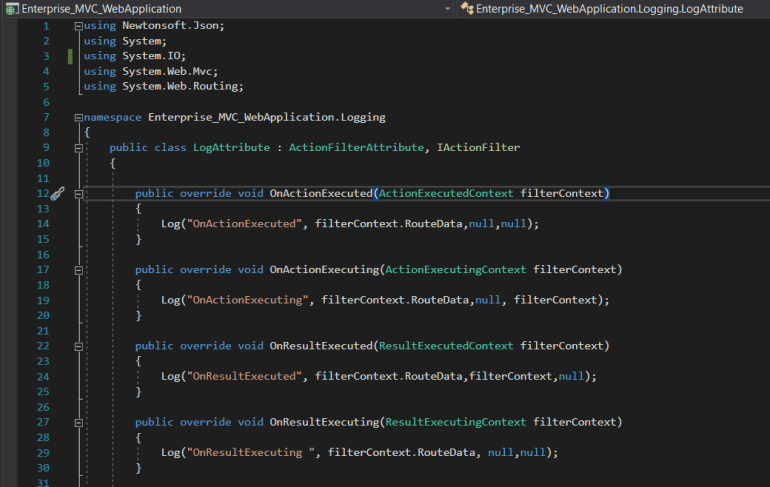
public override void OnActionExecuted(ActionExecutedContext filterContext)
{
    Log("OnActionExecuted", filterContext.RouteData,null,null);
}

public override void OnActionExecuting(ActionExecutingContext filterContext)
{
    Log("OnActionExecuting", filterContext.RouteData,null, filterContext);
}

public override void OnResultExecuted(ResultExecutedContext filterContext)
{
    Log("OnResultExecuted", filterContext.RouteData,filterContext,null);
}

public override void OnResultExecuting(ResultExecutingContext filterContext)
{
    Log("OnResultExecuting ", filterContext.RouteData, null,null);
}
Note: If you want to see the complete source code, please go to my Github – Enterprise_MVC_WebApp. My Github link puts on my profile page.
Step 4. Create the recorded log function in the classic file.
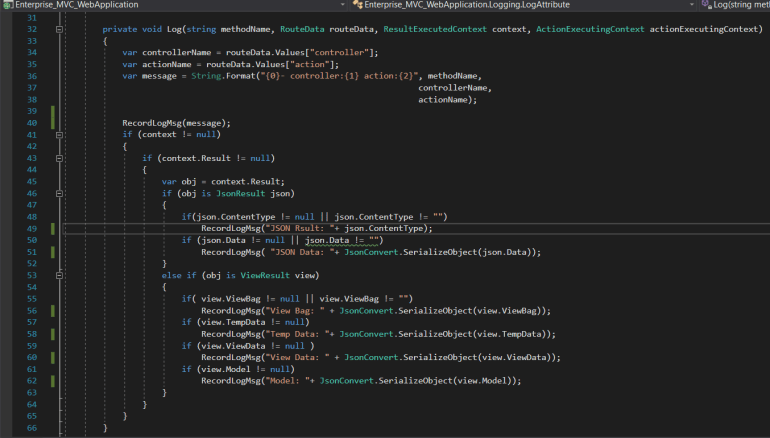
var controllerName = routeData.Values["controller"];
var actionName = routeData.Values["action"];
var message = String.Format("{0}- controller:{1} action:{2}", methodName,
controllerName,
actionName);

RecordLogMsg(message);
if (context != null)
{
    if (context.Result != null)
    {
        var obj = context.Result;
        if (obj is JsonResult json)
        {
if(json.ContentType != null || json.ContentType != "")
    RecordLogMsg("JSON Rsult: "+ json.ContentType);
if (json.Data != null || json.Data != "")
    RecordLogMsg( "JSON Data: "+ JsonConvert.SerializeObject(json.Data));
        }
        else if (obj is ViewResult view)
        {
if( view.ViewBag != null || view.ViewBag != "")
    RecordLogMsg("View Bag: " + JsonConvert.SerializeObject(view.ViewBag));
if (view.TempData != null)
    RecordLogMsg("Temp Data: "+ JsonConvert.SerializeObject(view.TempData));
if (view.ViewData != null )
    RecordLogMsg("View Data: " + JsonConvert.SerializeObject(view.ViewData));
if (view.Model != null)
    RecordLogMsg("Model: "+ JsonConvert.SerializeObject(view.Model));
        }
    }
}
Note: If you want to see the complete source code, please go to my Github – Enterprise_MVC_WebApp. My Github link puts on my profile page.
Note: Remember that the current project path will be under the IIS express folder or the IIS folder when running your web application project under the debug model or release model. The debug model or the release model simulates the normal running environments under the Windows server. Even if you publish your web application project to the windows server’s IIS of the acceptance testing environment, the web application will get the IIS folder path.
Step 5. Create a private and void method for writing the log information with writing format to the log file, then writing about the log file path’s source code. I set the log file path is C:\Log\{file_name}.txt.
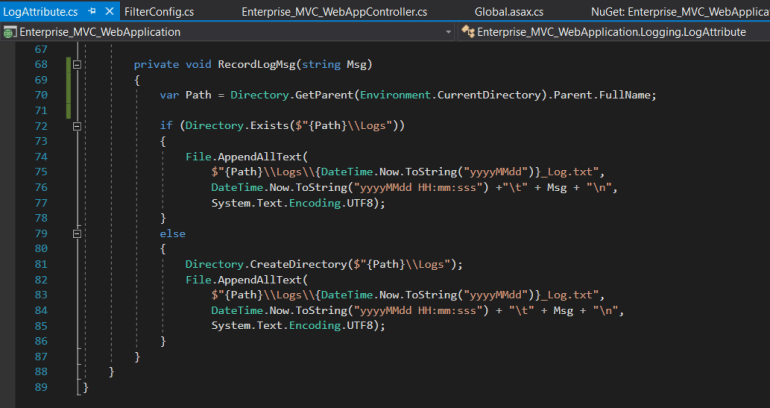
var Path = Directory.GetParent(Environment.CurrentDirectory).Parent.FullName;

if (Directory.Exists($"{Path}\\Logs"))
{
    File.AppendAllText(
        $"{Path}\\Logs\\{DateTime.Now.ToString("yyyyMMdd")}_Log.txt",
        DateTime.Now.ToString("yyyyMMdd HH:mm:sss") +"\t" + Msg + "\n",
        System.Text.Encoding.UTF8);
}
else
{
    Directory.CreateDirectory($"{Path}\\Logs");
    File.AppendAllText(
        $"{Path}\\Logs\\{DateTime.Now.ToString("yyyyMMdd")}_Log.txt",
        DateTime.Now.ToString("yyyyMMdd HH:mm:sss") + "\t" + Msg + "\n",
        System.Text.Encoding.UTF8);
}
If your C disk doesn’t have the Logs folder, the web application will help you create the Logs folder under your C disk, storing the log information in the text file. Even if you delete the Logs folder, the web application will do the same it.
Note: If you want to see the complete source code, please go to my Github – Enterprise_MVC_WebApp. My Github link puts on my profile page.
Step 6. Create the new controller file under the Controllers folder, then set the file name as “ActionFilterController.” It adds the CRUD method source code.
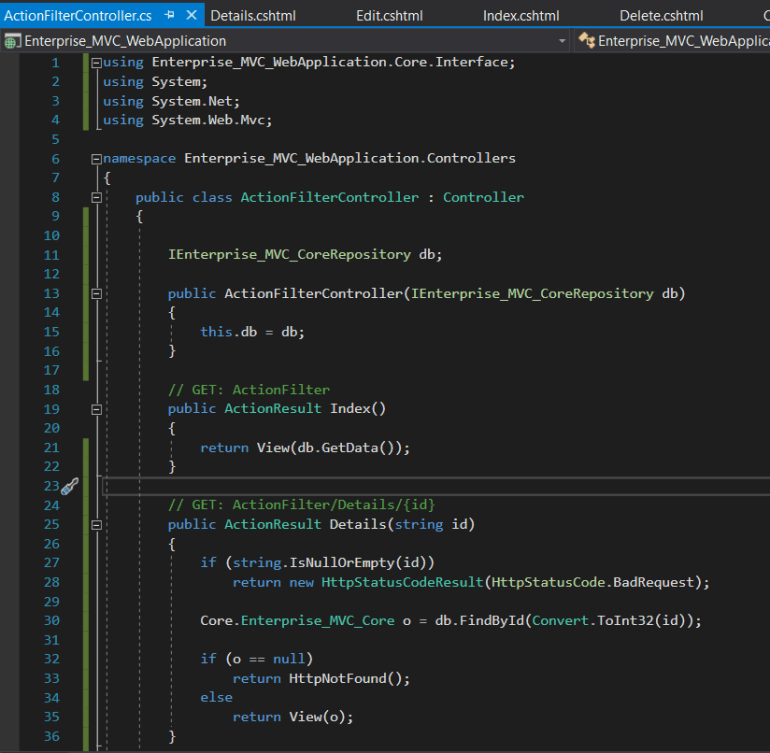
Note: If you don’t know how to create the CRUD method in controller files, please, follow the “Building MVC pattern project by Visual Studio 2017 ( ASP.Net framework Part )” article. You can reference my Github – Enterprise_MVC_WebApp repository.
Step 7. Add the LogAttribute’s Log method in the ActionFilterController file. You can assign all of the ActionResult methods or one ActionResult method. Remember to use the “using” keyword to assumes your action filter files. This action filter isn’t the global filter. It belongs to the custom action filter type.
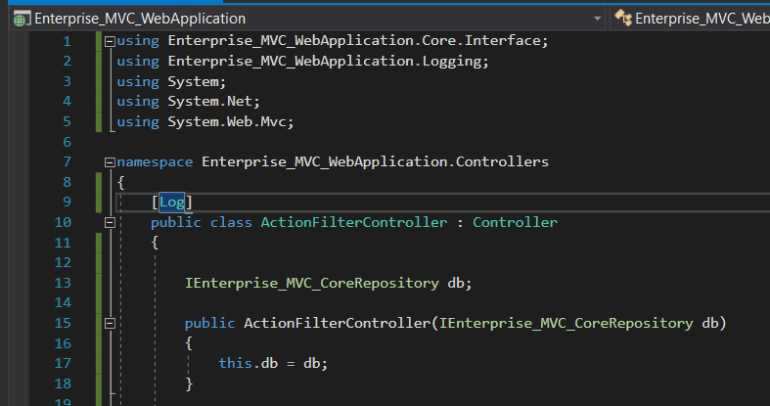
Note: If you want to see the complete source code, please go to my Github – Enterprise_MVC_WebApp. My Github link puts on my profile page.
Step 8. You will find out the C disk adds a new folder that will record your web application log messages.
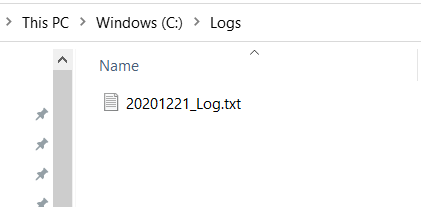

If you want to record other information or more information in the log files, you can modify the methods, such as the OnActionExecuted, OnActionExecuting, OnResultExecuted, and OnResultExecuting.
Conclusion
We create the custom action filter method that focuses on the log information record mechanism. This log information stores in the log.txt file under the Logs folder. It has automatically detected the folder exist mechanism. If the Logs folder doesn’t exist, the web application will help the server create the Logs folder—these log information record the “After executing” information and “Before executing” statement. If we application has encountered the error, the web application can record the error messages, such as the HTTP status code.
Note: If you find out the sample code has a little different part on an article, please, accord the GitHub release version as primary.
Reference
- Aspect-oriented programming in .Net Core
- Building MVC pattern project by Visual Studio 2017 ( ASP.Net framework Part )
- ASP.NET MVC 4 Custom Action Filters
- Filtering in ASP.NET MVC
1 Comment